Raspberry Pi Home Server Guide: Set Up in an Afternoon
Turn a Raspberry Pi into a powerful home server for file sharing, media streaming, ad blocking, and more with this step-by-step afternoon project.
 Build Coded Editorial
 Why Run a Home Server on a Raspberry Pi?
A Raspberry Pi draws about 5 watts of power. That is roughly one dollar a month in electricity. For that cost, you get a file server, a media streamer, a network-wide ad blocker, and whatever else you want to run — all on a credit-card-sized computer sitting quietly in a corner.
Cloud storage subscriptions, streaming services, and smart home hubs all cost monthly fees. A Pi home server replaces several of them with a one-time purchase. And you own your data.
This guide walks you through a complete setup from unboxing to a working server with file sharing, Plex media streaming, and Pi-hole ad blocking.
What You Need
Required Hardware
| Item | Purpose | Estimated Cost |
|---|---|---|
| Raspberry Pi 4 (4GB or 8GB) | The server itself | $55-75 |
| MicroSD card (32GB+) | Boot drive | $8-12 |
| USB-C power supply (5V/3A) | Power | $8-10 |
| Ethernet cable | Reliable network connection | $5 |
| External USB hard drive | Storage for files and media | $40-80 |
Optional but Recommended
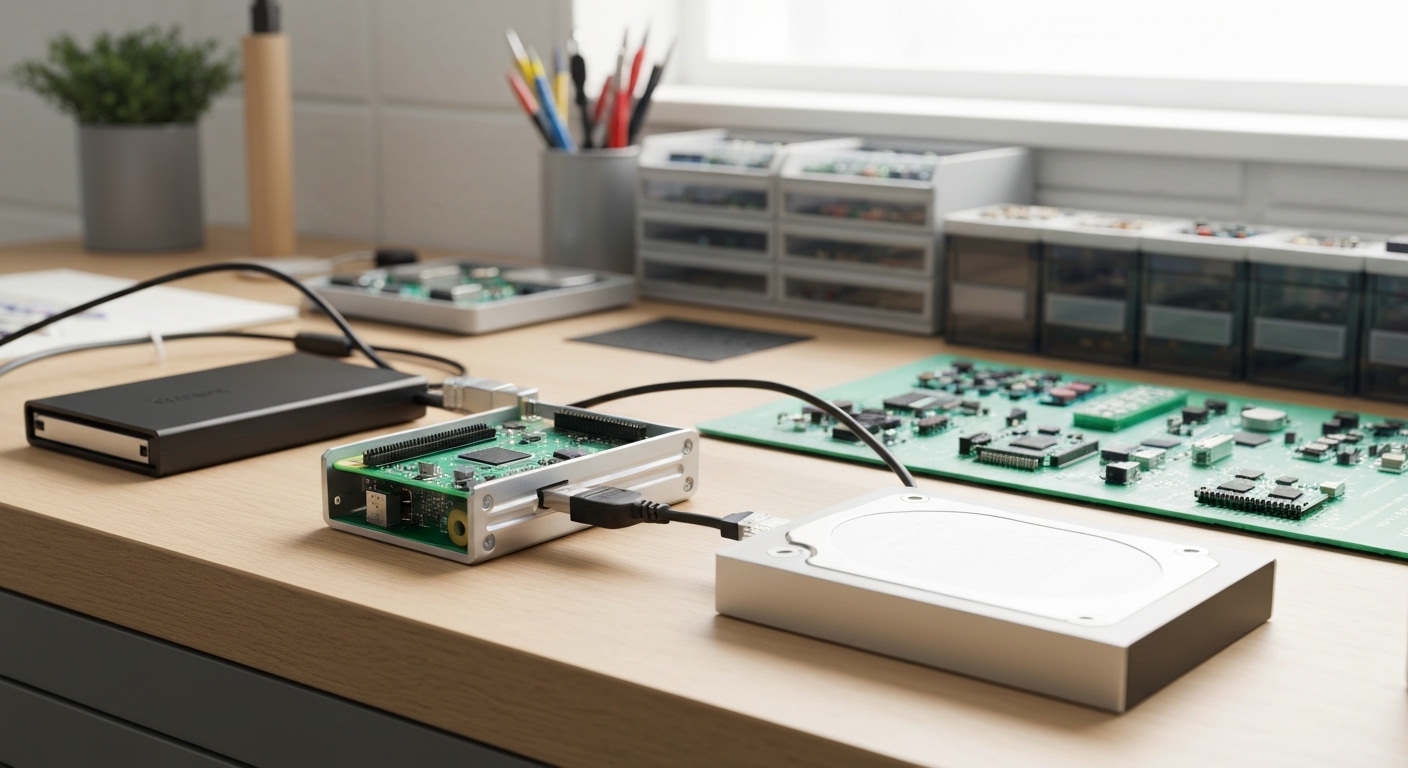
- Aluminum passive cooling case — keeps the Pi cool without a fan (silent operation)
- USB SSD instead of HDD — faster, more reliable, but costs more
- UPS battery backup — protects against power outages corrupting your data
Software (All Free)
- Raspberry Pi OS Lite (no desktop needed)
- Samba (file sharing)
- Plex Media Server
- Pi-hole (ad blocking)
Step 1: Flash Raspberry Pi OS
Download the Raspberry Pi Imager on your main computer. Insert your microSD card and follow these steps:
- Open Raspberry Pi Imager.
- Choose Raspberry Pi OS Lite (64-bit) — you do not need a desktop environment for a headless server.
- Click the gear icon (Advanced Options) before writing:
- Set a hostname (e.g.,
piserver). - Enable SSH with password authentication.
- Set your username and password.
- Configure your WiFi (as backup, but use Ethernet for the server).
- Set your locale and timezone.
- Set a hostname (e.g.,
- Write the image to the SD card.
Pro tip: Write down the username and password you set. You would be surprised how many people forget them and have to re-flash.
Step 2: First Boot and Initial Configuration
Insert the SD card into your Pi, connect Ethernet, plug in the power supply, and wait about 90 seconds.
Find Your Pi on the Network
From another computer on the same network:
ping piserver.localIf that does not resolve, check your router’s admin page for the Pi’s IP address, or use nmap -sn 192.168.1.0/24 (replace with your subnet).
SSH In
ssh [email protected]Update Everything
sudo apt update && sudo apt full-upgrade -yThis may take 5-10 minutes. Let it finish completely.
Configure the Pi
sudo raspi-configKey settings to adjust:
- Expand filesystem — ensures you use the full SD card.
- GPU memory — set to 16MB since there is no display connected.
- Timezone — confirm it matches your location.
Reboot when prompted.
Step 3: Set Up External Storage
Plug in your external USB drive. Identify it:
lsblkYou should see your drive listed (typically as /dev/sda). If it is new or you want a clean start, format it as ext4:
sudo mkfs.ext4 /dev/sda1Warning: This erases everything on the drive. Double-check you are formatting the right device.
Create a Mount Point and Auto-Mount
sudo mkdir /mnt/storage
sudo mount /dev/sda1 /mnt/storage
To make it mount automatically on every boot, get the drive’s UUID:
sudo blkid /dev/sda1Add this line to /etc/fstab (replace the UUID with yours):
UUID=your-uuid-here /mnt/storage ext4 defaults,nofail 0 2The nofail option is important — it prevents the Pi from failing to boot if the drive is disconnected.
Create Folder Structure
sudo mkdir -p /mnt/storage/{shared,media,backups}
sudo chown -R youruser:youruser /mnt/storage
Step 4: Set Up Samba File Sharing
Samba lets you access files from Windows, Mac, and Linux computers on your network.
sudo apt install samba samba-common-bin -yEdit the Samba configuration:
sudo nano /etc/samba/smb.confAdd this at the bottom:
[Shared]
path = /mnt/storage/shared
browseable = yes
writeable = yes
create mask = 0775
directory mask = 0775
valid users = youruser

[Media]
path = /mnt/storage/media
browseable = yes
read only = yes
guest ok = yes
Set your Samba password:
sudo smbpasswd -a youruserRestart Samba:
sudo systemctl restart smbdAccess from Other Devices
- Windows: Open File Explorer, type
\\piserver.localin the address bar. - Mac: In Finder, press Cmd+K and enter
smb://piserver.local. - Linux: Use your file manager’s “Connect to Server” or mount via
cifs.
Step 5: Install Plex Media Server
Plex turns your Pi into a media streaming server. You access your movie, music, and photo libraries from any device with a web browser or the Plex app.
# Add the Plex repository
curl https://downloads.plex.tv/plex-keys/PlexSign.key | gpg --dearmor | sudo tee /usr/share/keyrings/plex-archive-keyring.gpg > /dev/null
echo "deb [signed-by=/usr/share/keyrings/plex-archive-keyring.gpg] https://downloads.plex.tv/repo/deb public main" | sudo tee /etc/apt/sources.list.d/plexmediaserver.list

# Install
sudo apt update
sudo apt install plexmediaserver -y
Configure Plex
- Open
http://piserver.local:32400/webin a browser. - Sign in or create a Plex account.
- Name your server.
- Add library folders pointing to
/mnt/storage/media/movies,/mnt/storage/media/tv, etc.
Important note on transcoding: The Raspberry Pi 4 cannot hardware-transcode video. For smooth streaming, make sure your media files match the format your playback device supports (most modern devices handle H.264 MP4 natively). Direct play works great; transcoding does not.
Pro tip: Organize your media in Plex’s expected folder structure:
/mnt/storage/media/movies/Movie Name (Year)/Movie Name (Year).mkv
/mnt/storage/media/tv/Show Name/Season 01/Show Name - S01E01.mkv
Step 6: Install Pi-hole for Network-Wide Ad Blocking
Pi-hole acts as a DNS server for your entire network, blocking ads and trackers before they even load. Every device on your network benefits — including phones, smart TVs, and IoT devices that you cannot install an ad blocker on.
curl -sSL https://install.pi-hole.net | bashThe installer is interactive. Key choices:
- Select your Ethernet interface.
- Choose any upstream DNS provider (Cloudflare
1.1.1.1or Google8.8.8.8are popular). - Install the web admin interface (yes).
- Log queries (yes, useful for debugging).
After installation, note the admin password shown on screen, or set a new one:
pihole -a -pPoint Your Network to Pi-hole
The easiest method: log into your router and set the primary DNS server to your Pi’s IP address. Every device on the network will automatically use Pi-hole.
Access the dashboard at http://piserver.local/admin to see blocked queries, top domains, and statistics.
Step 7: Secure Your Server
Set Up a Firewall
sudo apt install ufw -y
sudo ufw allow ssh
sudo ufw allow samba
sudo ufw allow 32400/tcp    # Plex
sudo ufw allow 53           # Pi-hole DNS
sudo ufw allow 80/tcp       # Pi-hole web interface
sudo ufw enable
Enable Automatic Security Updates
sudo apt install unattended-upgrades -y
sudo dpkg-reconfigure -plow unattended-upgrades
Set Up SSH Key Authentication (Recommended)
From your main computer:
ssh-keygen -t ed25519
ssh-copy-id [email protected]
Then disable password authentication in /etc/ssh/sshd_config by setting PasswordAuthentication no and restarting SSH.
Schedule Regular Backups
Add a cron job to back up critical configurations:
crontab -eAdd:
0 3 * * 0 tar -czf /mnt/storage/backups/pi-config-$(date +\%Y\%m\%d).tar.gz /etc/samba /etc/pihole /etc/fstabThis runs every Sunday at 3 AM and keeps your configurations backed up.
Performance Tips
- Always use Ethernet — WiFi adds latency and reduces throughput for file transfers.
- Use a USB 3.0 drive — The Pi 4 has USB 3.0 ports (the blue ones). Make sure your drive is connected there.
- Consider an SSD — A USB 3.0 SSD enclosure with a spare SATA SSD dramatically improves file access speeds.
- Monitor temperature — Run
vcgencmd measure_tempperiodically. If it consistently exceeds 70C, improve your cooling. - Keep the SD card healthy — SD cards wear out with excessive writes. Use
log2ramto keep logs in RAM:sudo apt install log2ram.
Troubleshooting
Pi not found on the network
- Verify the Ethernet cable is connected and the link light is on.
- Check your router’s DHCP client list for the Pi’s IP.
- If using WiFi, ensure the credentials in Imager were correct.
External drive not mounting
- Run
dmesg | tail -20after plugging in the drive to check for errors. - Some drives draw too much power from the Pi’s USB ports. Use a powered USB hub if needed.
Plex buffering
- Confirm the client is doing Direct Play, not transcoding (check Plex dashboard during playback).
- Convert media to H.264 MP4 format using HandBrake on your main computer.
What Else Can Your Pi Server Do?
Once the foundation is set, you can add more services:
- Home Assistant — smart home automation hub
- Nextcloud — your own cloud storage (like Google Drive)
- WireGuard VPN — access your home network securely from anywhere
- Gitea — self-hosted Git server
- Grafana + InfluxDB — monitoring dashboards for all your home data
A five-watt computer running 24/7, serving your files, streaming your media, and blocking ads across your entire network. That is a productive afternoon.